Deployment view
The Deployment view draws the dag for every declared environment: each node's folder, the allez files and items in it, and the id references between items. Open it from the Allez tab in the panel area, beside Terminal, or with the command Allez: Deployment. The view runs nothing but allez document and changes no file.
Environments
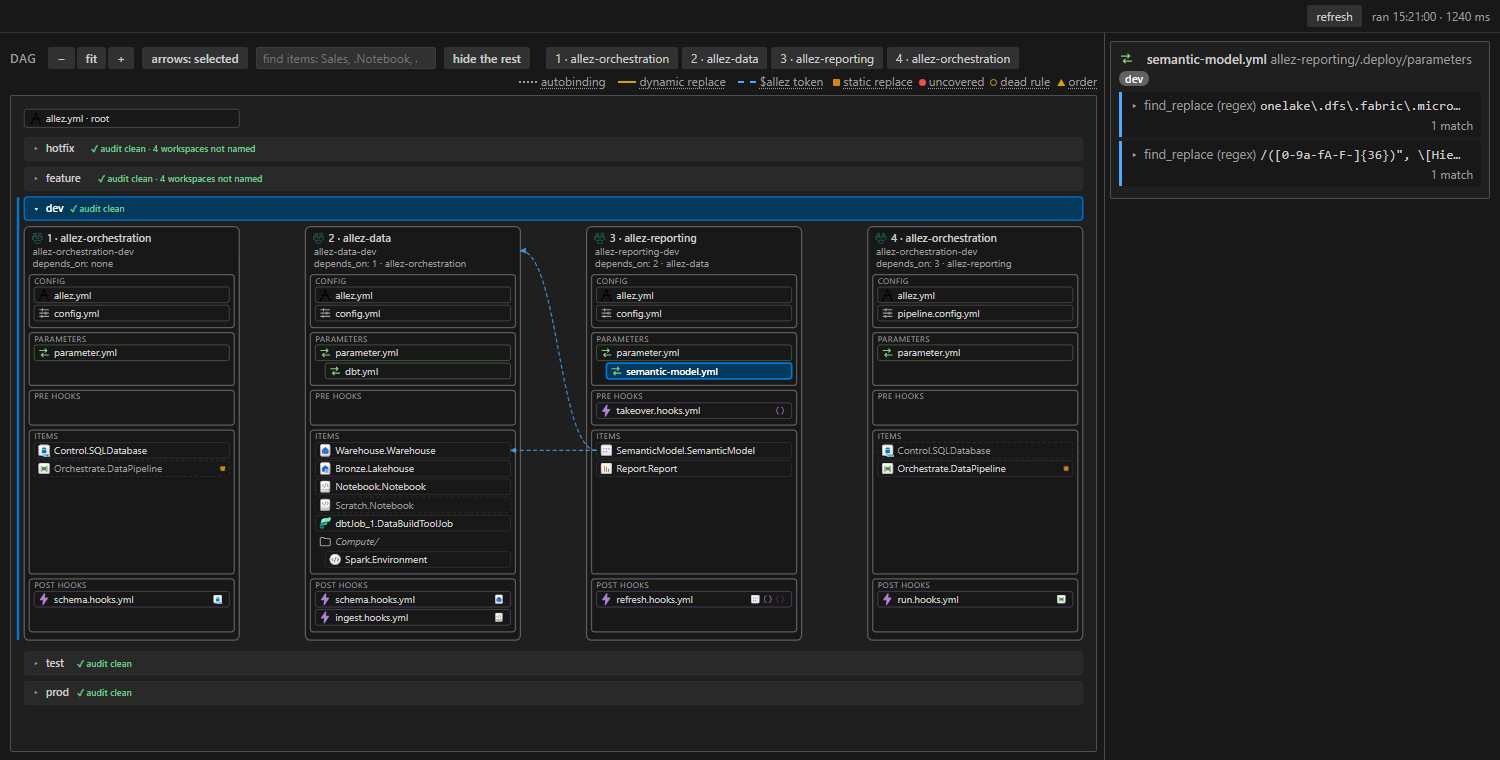
The dag is drawn once per declared environment, as a band. Each band's header shows that environment's audit verdict: audit clean, a count of warnings, or a count of blockers. 3 workspaces not named means that many nodes have no workspace for the environment in config.yml, which is expected for a branch environment such as feature, because allez provision names those workspaces.
- Click a band's name to select its environment. Its band opens, scrolls into view and is marked, and every heading in the right column names it.
- Click a band's verdict for its findings list. Each entry opens its file at the line. Accepted findings come last, greyed and named
accepted, with their reasons. The count at the top gives them apart, for example3 findings · 2 accepted. - Click a band's chevron to fold or open it.
Containers
Each dag node is a container, numbered in deploy order. Its header names the workspace it deploys to for the selected environment, or no workspace named. Below that is the node's depends_on from the root allez.yml: the containers that must deploy first, by number and folder, or depends_on: none. The numbers are one order that depends_on allows. A node with depends_on: none can still come after others. Inside are five sections that mirror the sub-folder's allez files:
- Config: the sub-folder's
allez.ymlandconfig.yml(or the overlay the node names). Aconfig.ymlrow says when publish or orphan cleanup is skipped for this environment, for examplekeeps orphans. - Parameters:
parameter.ymland the templates it pulls in withextend:. - Pre hooks and Post hooks: the hooks files the node runs.
- Items: the
<Name>.<Type>folders, inside the Fabric folders they sit in, with Fabric's icons.
Marks at the right of a row:
| Mark | Meaning |
|---|---|
| Filled red circle | A blocker touches this file: uncovered or env-gap. |
| Hollow amber circle | A dead rule. |
| Triangle | An order warning. |
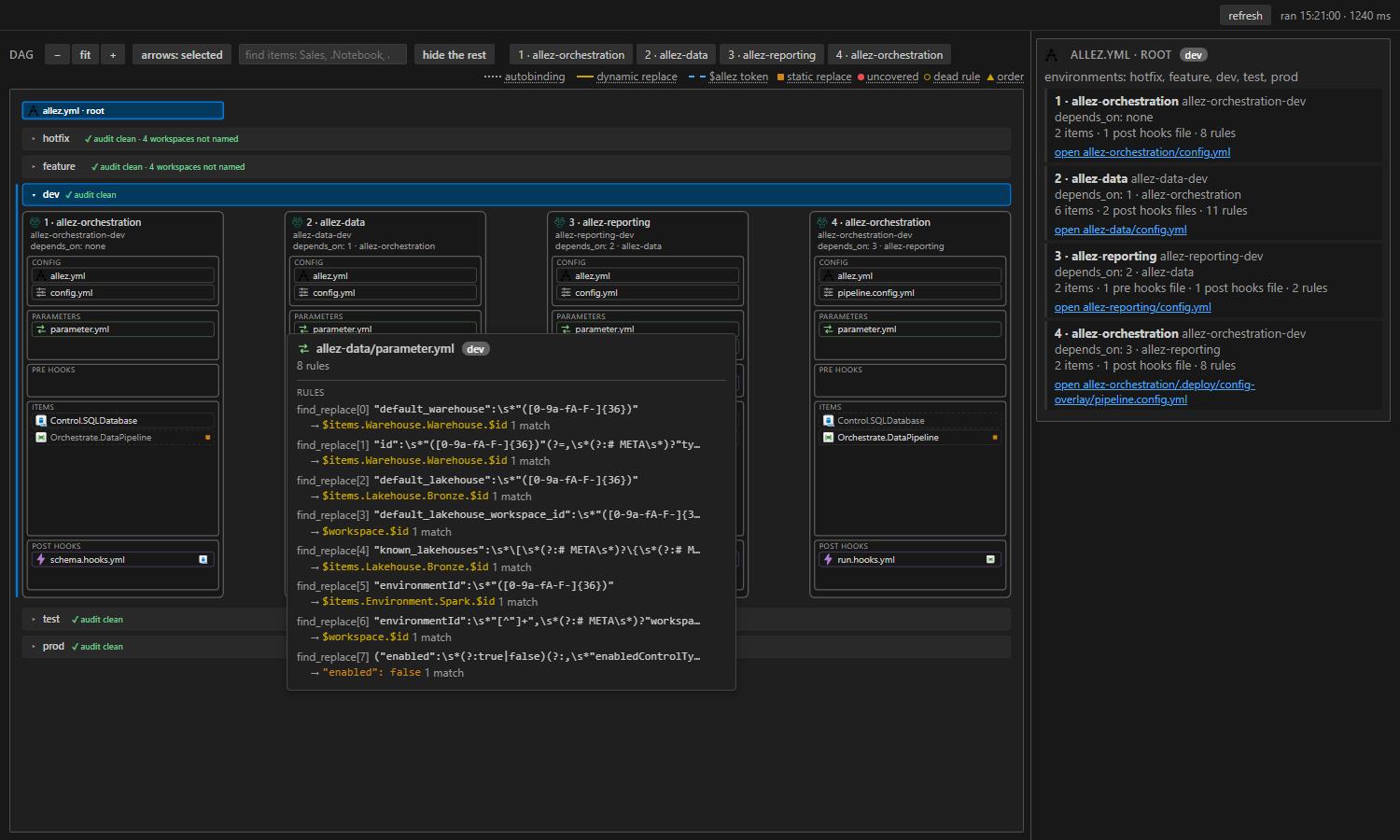
| Small square on an item | The item holds a static id: a parameter.yml rule writes a literal value for it. A literal id has no target to draw an arrow to, so the square stands in for one. Every other kind of id reference is an arrow. Hover the item for the list. |
| Small icons on a hooks file | One per step, in order: the Fabric icon of the type the step's item: names, { } for a fab_api step, or the hooks icon when the step names no type (a bare item: Sales). A faded icon is a step that does not run in this environment. Hover the row for the steps. |
The row's tooltip lists the findings behind its marks, and so does the right column when the file is open.
To look at a small part of the deployment, hide the containers you don't need. Click a container's chip above the drawing, 2 · allez-data say, to leave it out of every band, and click it again to bring it back. The choice is remembered. No arrow is drawn to or from a hidden container's items.
Hover any row for a card of what it carries: an item's id references and the rules that touch it, a parameter file's rules with this environment's replacement, a hooks file's steps, a config.yml's resolved settings. Click a row to open the file.
Arrows
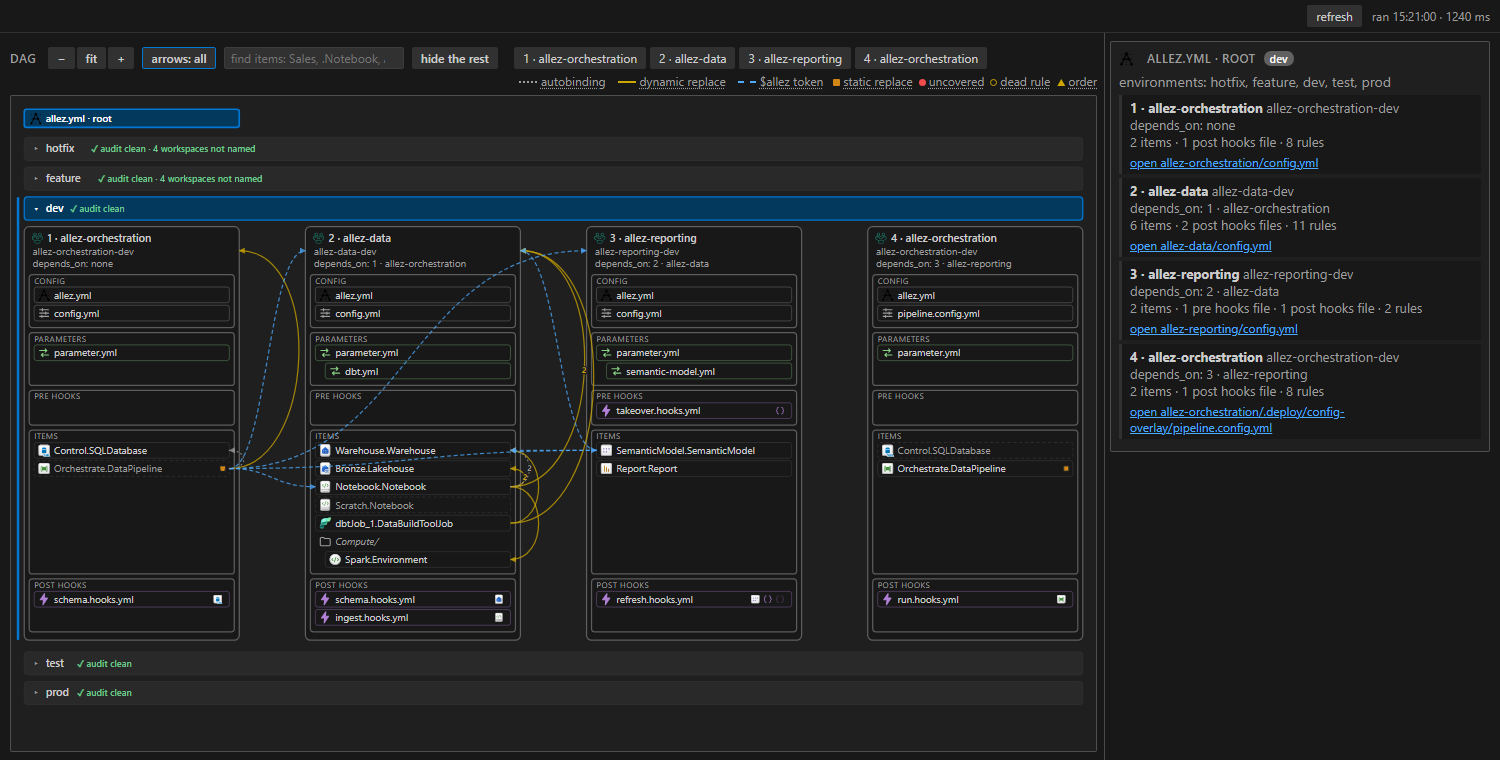
An arrow is an id reference: a file that names another item, drawn from the item that holds the id to the item it points at. Its line says how the reference is rewritten for the selected environment:
| Arrow | Coverage |
|---|---|
| Dotted grey | Autobinding: fabric-cicd rebinds it by itself, such as a logical id of an item in the same sub-folder. |
| Solid amber | Dynamic replace: a parameter.yml rule with a $workspace or $items replacement, resolved by fabric-cicd at deploy time. |
| Dashed blue | $allez token: a rule whose replacement is a $allez.* token, resolved by allez before the node deploys. |
A static replacement (a literal id per environment) and an uncovered id have no target to draw to, so they show only as marks on the item. The item's card and context list every id with its line, coverage and target.
arrows: selected(the default) draws only the arrows for the file open in the editor.arrows: alldraws every item's. With five folders, all of them at once is hard to read.- Hover a file or item to light its arrows and fade the rest.
- Click an arrow kind in the legend to hide or show those arrows.
The right column
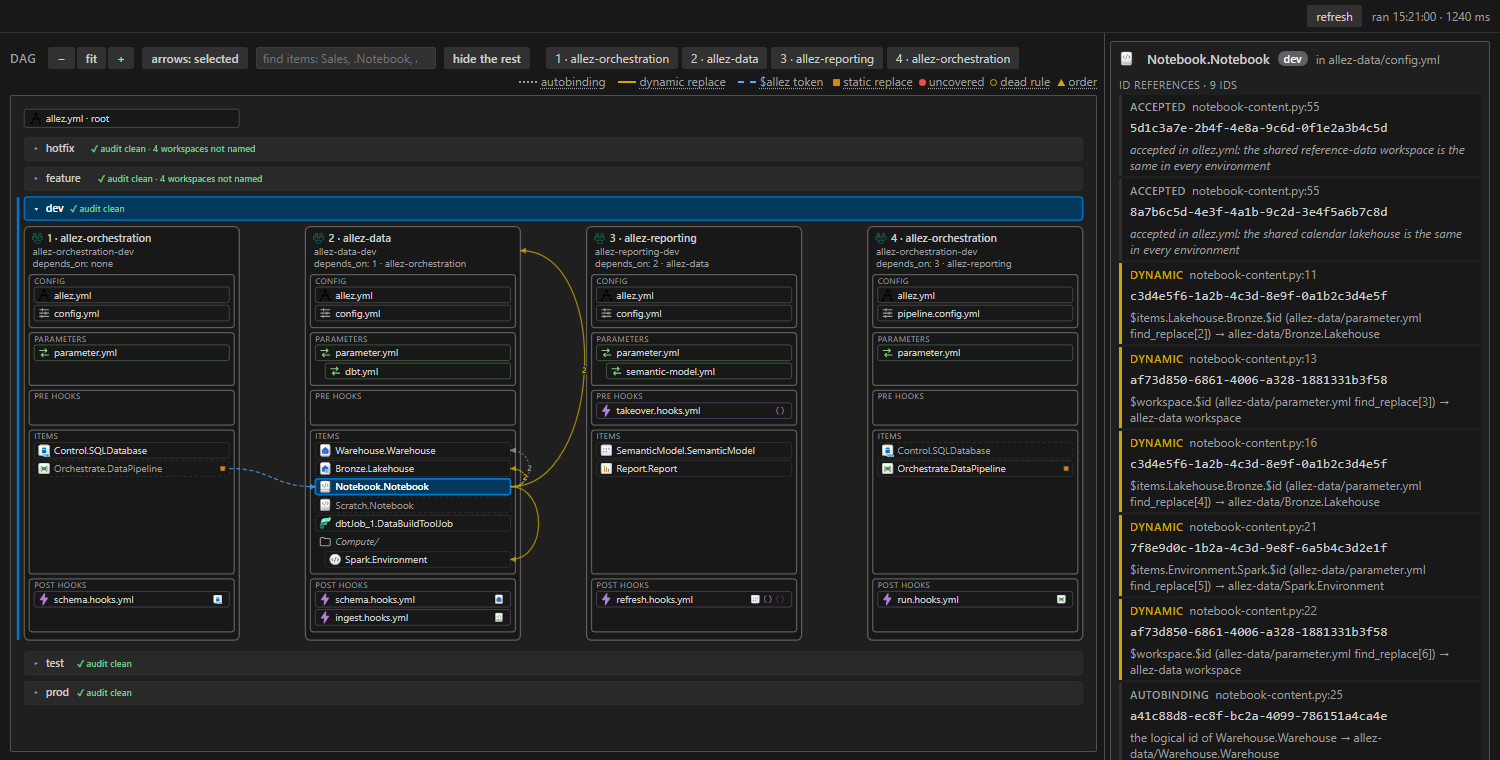
The right column follows the file open in the editor:
| Open file | The column shows |
|---|---|
The root allez.yml, or no allez file |
The solution: each node in order, what it holds, and any file the dag does not name. A sub-folder's allez.yml also shows its findings, such as an unused-accept |
A parameter.yml or a template |
Its findings, such as an order warning or a dead rule, then its rules, each with the lines it matches as excerpts. Click an excerpt to open the file at that line |
A config.yml or overlay |
Its node for this environment: the workspace, whether publish and unpublish run, its findings and the items in scope |
| A hooks file | Its findings, then its steps |
| A file inside an item | Every id in the item with its coverage and target, the rules that rewrite its files, and any other finding on it. An uncovered id says its finding once, on its reference; an accepted one reads accepted, with its reason |
Opening a file from the column keeps the column where it is, so you can step through a rule's matches.
Finding items
The box beside hide the rest, above the drawing, finds items by their <Name>.<Type>. Items it matches are outlined in every open band; the other items are dimmed. Turn on hide the rest to hide them instead. A Fabric folder left with nothing to show is hidden too, and so is any arrow from a hidden item.
The text is a regular expression and ignores case:
Salesfinds every item withSalesin its name..Notebookfinds every notebook. Use a type this way where you would otherwise want a filter per type.SemanticModel|Reportfinds two types at once.^Loadfinds names that start withLoad.
Text that is not a valid expression yet, such as a half-typed Sales(, is matched as plain text, so the drawing never empties while you type. Only items are matched; the config, parameter and hooks rows always show. The box and the toggle keep their state when the view is hidden and shown. Clear the box to show everything again.
Moving around
Drag the drawing to pan. Ctrl+wheel zooms, as do the −, fit and + buttons. Drag a container's right edge to widen it, and the splitter between the dag and the right column to resize them. Double-click a splitter or edge to reset it.